> How do I change the main course title and information?
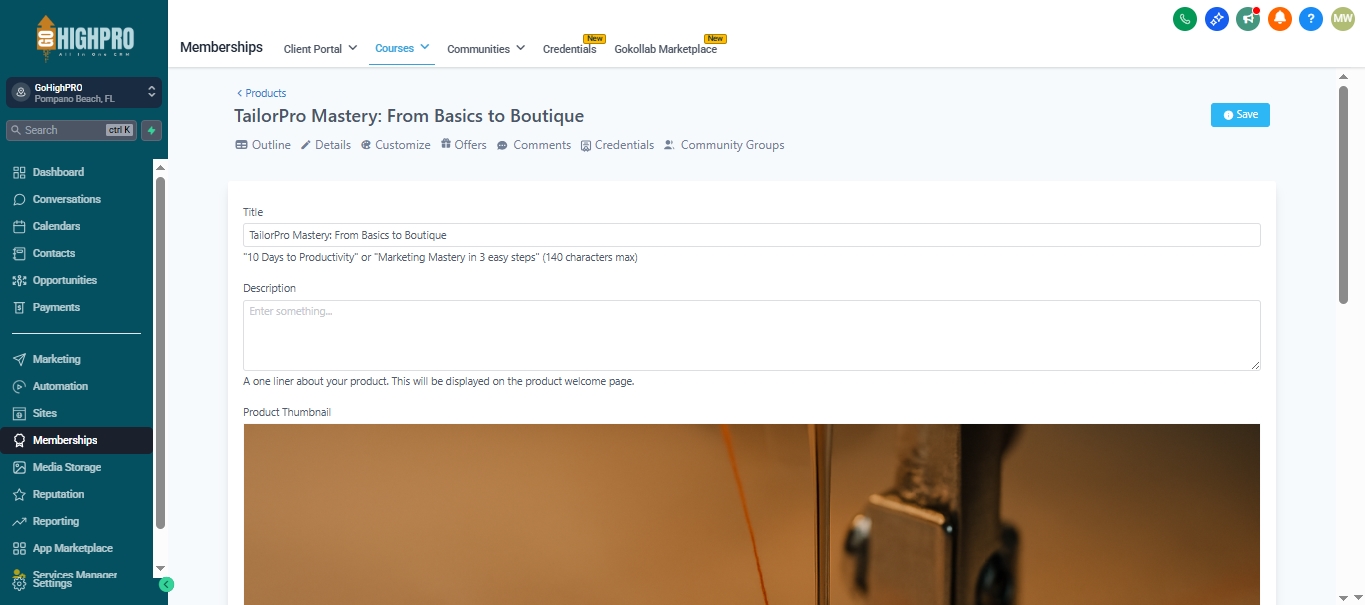
This guide will show you how to update your main course title, feature image, and some other details in Teachable.
Step 1: Access Course Details
Open your course.
Ignore the modules and lessons for now.
Click on the “Details” tab.
Step 2: Update Course Title and Description
In the “Details” section, you can edit the course title. This is the main name students will see.
Add a brief description of your course content. Keep it concise as it appears in the course header area.
Step 3: Change Feature Image
Click “Upload new file” under “Product Feature Image.”
Choose an image that represents your course well.
Ideal size: 1280 pixels wide by 720 pixels tall.
Consider using a pre-made template from Canva (mentioned in the video).
Step 4: Update Instructor Information (Optional)
Under “Customization,” you can change your instructor title (e.g., Coach, Instructor).
Click “Upload new file” to add your headshot (ideally square-shaped).
Enter your name and any relevant title (e.g., Founder of Lady Boss Studio).
Add a short bio if desired.
Step 5: Update Logo and Favicon (Optional)
Click “Upload new file” to update your course logo.
Ensure a square format if your logo is horizontal. Consider using an alternate logo if necessary.
Click “Upload new file” to update your course favicon.
Ensure a square format for the favicon image.
Step 6: Save Changes
You don’t need to modify anything under “Advanced” unless you’re using advanced tracking features.
That’s it! Your course title, feature image, and other details have been updated.
