> How do I change my Profile Settings?
Learn how to edit and update your individual profile inside of GoHighPRO.
Changing your Profile Settings.
There are quite a few settings that will be completely specific to you as a user on your account. Since you can have multiple users (accounts for your VA, OBM, sidekick etc…), it’s important that you make sure your details are correct.
Go to Settings
Select Business Info
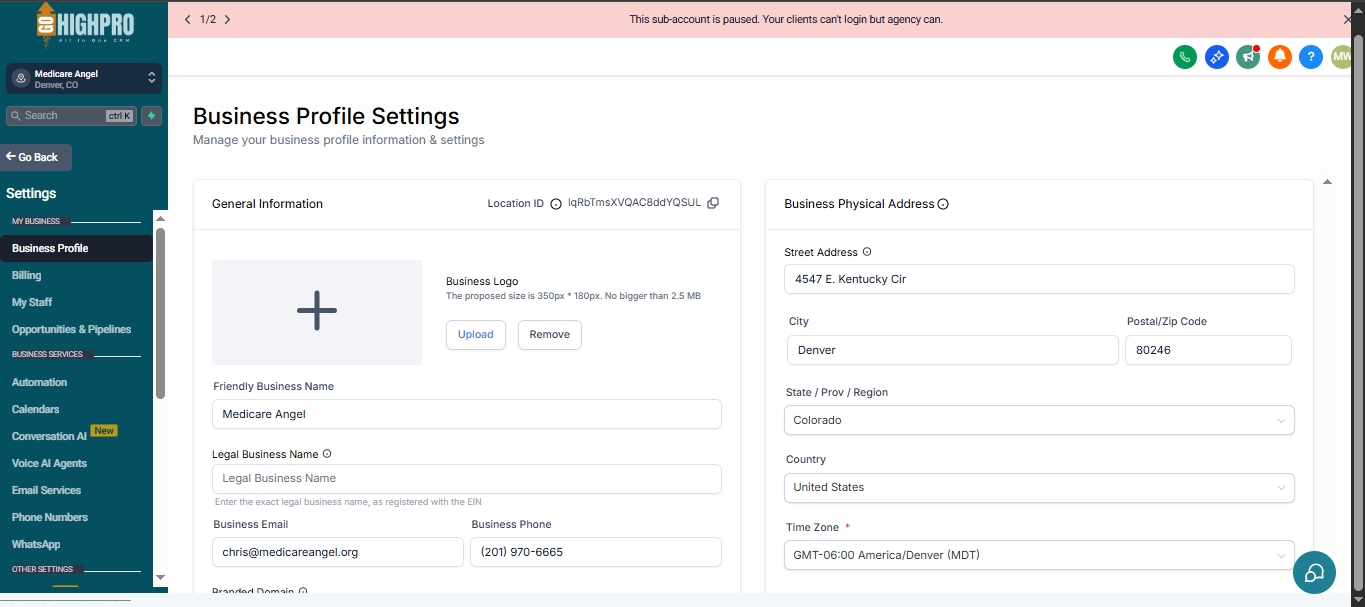
Editing Your Profile Settings: A Step-by-Step Guide
Accessing Your Profile:
Go to Settings.
Click on My Profile.
Profile Information:
Personal Information: Ensure your email address and phone number are accurate for login purposes and two-factor authentication.
Email Signature: You can include an email signature here (optional). We typically recommend including it in email templates instead.
Integrations:
Zoom Account: Click Integrate to connect your Zoom account (refer to separate video for setup).
Outlook Calendar (Optional): GoHighPRO integrates with Google Calendar, but you can connect Outlook if preferred.
Two-way Sync (New Feature):
This feature (currently in beta) aims to sync email conversations with contacts in GoHighPRO when using two-way communication.
Enabling it depends on your email volume and preference.
Additional Settings:
Change Password: Enter your existing password followed by your desired new password.
Meeting Location: Select your Zoom account (if connected) as your meeting location.
Time Zone: Choose your correct time zone.
Availability: Leave this section open and adjust availability for specific appointments later.
