> How do I add additional users to GoHighPro?
January 29, 2025
How to add in additional users
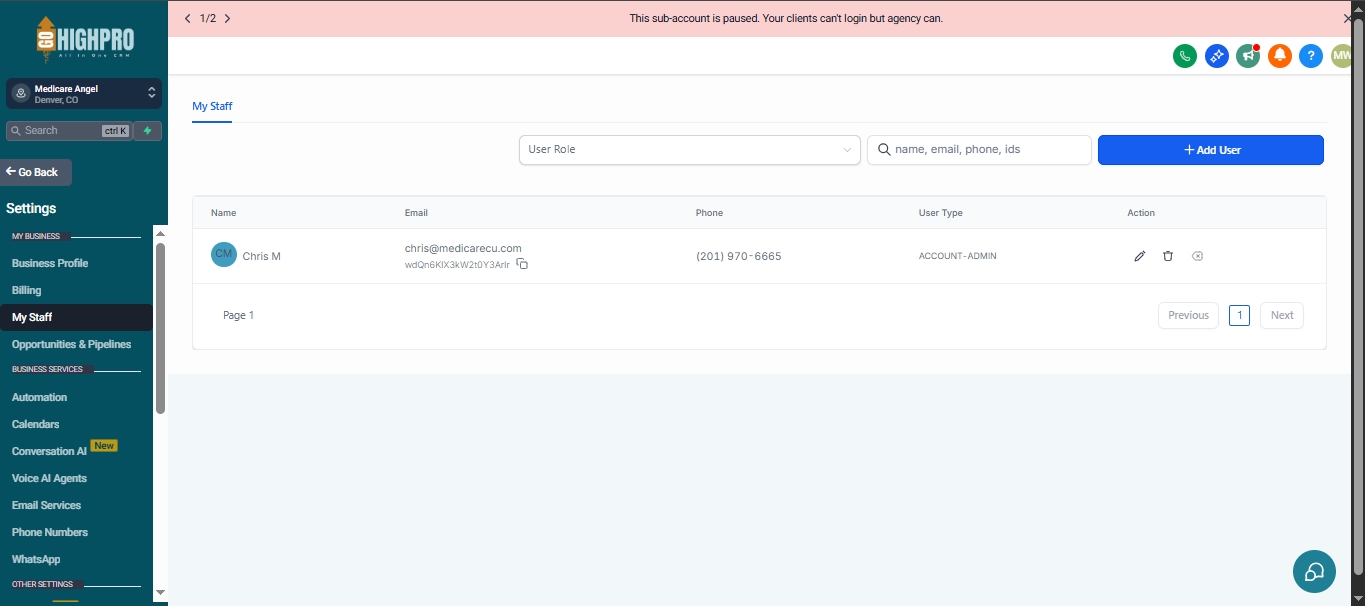
Settings
My Staff
How to Add Additional Users: A Step-by-Step Guide
Steps:
Navigate to Settings: Log in to your GoHighPRO account and go to the “Settings” section.
Access Staff Management: Within Settings, locate and click on “My Staff” or a similar option for managing team members.
Add New User: Click on “Add Employee” or the equivalent button to initiate the user creation process.
Fill in User Information:
Enter the new user’s first and last name.
Provide a valid email address for the user. This will be their login credential.
Adding a phone number is optional but recommended for two-factor authentication during login.
Set a Temporary Password: Create a temporary password for the new user. They can change it upon logging in for the first time.
Assign User Role: Under “User Permissions,” choose the appropriate access level for the new user.
Typically, team members will be “Users” with limited access compared to “Admins.”
Configure Additional Settings (Optional):
You can adjust user availability settings, call and voicemail settings, and calendar configurations if needed. These can also be customized by the user later.
Save User: Once you’ve filled in the necessary details and chosen the user role, click “Save” to add the new team member to your account.
User Login:
The new user will receive an invitation email (if enabled) or can directly access the platform
They will need to log in using their unique email address and the temporary password provided.
Upon first login, they can reset their password to a more unique one.
Benefits of Adding Users:
Grants team members access to collaborate and manage your funnels.
Improves team accountability by tracking individual user actions.
Provides peace of mind with secure individual logins for each team member.
